5.2 KiB
BAP and BPP registration with Registry
After updating your DNS records, you need to register the bap-network and bpp-network services with the registry service. Follow these instructions to complete the registration process:
1. Register BAP or BPP Network
Formulate the Registration Payload
Use the table below to create the JSON payload for registering the bap-network or bpp-network:
| Field | Description | Example Value |
|---|---|---|
subscriber_id |
Set this to the DNS name of the bap-network or bpp-network. |
bap-network.beckn-onix-aws-cdk.becknprotocol.io or bpp-network.beckn-onix-aws-cdk.becknprotocol.io |
pub_key_id |
Public key that the BAP/BPP service started with. | |
unique_key_id |
Unique key identifier, usually in the format subscriber_id.k1. |
bap-network.beckn-onix-aws-cdk.becknprotocol.io.k1 or bpp-network.beckn-onix-aws-cdk.becknprotocol.io.k1 |
subscriber_url |
URL of the bap-network or bpp-network. |
https://bap-network.beckn-onix-aws-cdk.becknprotocol.io or https://bpp-network.beckn-onix-aws-cdk.becknprotocol.io |
domain |
Leave this as an empty string if not used. Or check if a domain has been configured on Registry. | |
extended_attributes |
Additional attributes if any. | {"domains": []} |
encr_public_key |
Encryption public key that the BAP/BPP service uses. This is same as pub_key_id |
|
signing_public_key |
Signing public key that the BAP/BPP service uses. This is same as pub_key_id |
|
valid_from |
Start date and time in ISO 8601 format. | 2024-09-05T09:27:57.630Z |
valid_until |
Expiration date and time in ISO 8601 format. | 2027-09-06T09:28:40.494Z |
type |
Set to BAP or BPP based on the service. |
BAP or BPP |
country |
Country code. | IND |
status |
Use SUBSCRIBED to indicate that the registration is complete. |
SUBSCRIBED |
Example curl Command for BAP Network:
curl --location --request POST 'https://registry.beckn-onix-aws-cdk.becknprotocol.io/subscribers/register' \
--header "Content-Type: application/json" \
--data-raw '{
    "subscriber_id": "subscriber_id",
    "pub_key_id": "public_key",
    "unique_key_id": "subscriber_id.k1",
    "subscriber_url": "https://url_bap_network",
    "domain": " ",
    "extended_attributes": {"domains": []},
    "encr_public_key": "public_key",
    "signing_public_key": "public_key",
    "valid_from": "2024-09-05T09:27:57.630Z",
    "valid_until": "2027-09-06T09:28:40.494Z",
    "type": "BAP",
    "country": "IND",
    "status": "SUBSCRIBED"
}'
Example curl Command for BPP Network:
curl --location --request POST 'https://registry.beckn-onix-aws-cdk.becknprotocol.io/subscribers/register' \
--header "Content-Type: application/json" \
--data-raw '{
    "subscriber_id": "subscriber_id",
    "pub_key_id": "public_key",
    "unique_key_id": "subscriber_id.k1",
    "subscriber_url": "https://url-bpp-network",
    "domain": " ",
    "extended_attributes": {"domains": []},
    "encr_public_key": "public_key",
    "signing_public_key": "public_key",
    "valid_from": "2024-09-05T09:27:57.630Z",
    "valid_until": "2027-09-06T09:28:40.494Z",
    "type": "BPP",
    "country": "IND",
    "status": "SUBSCRIBED"
}'
Update Status in Registry UI
After sending the registration request, you need to manually update the status in the registry service UI. The auto-registration feature of BAP and BPP with Registry is in the backlog. Follow these steps:
-
Login into the Registry
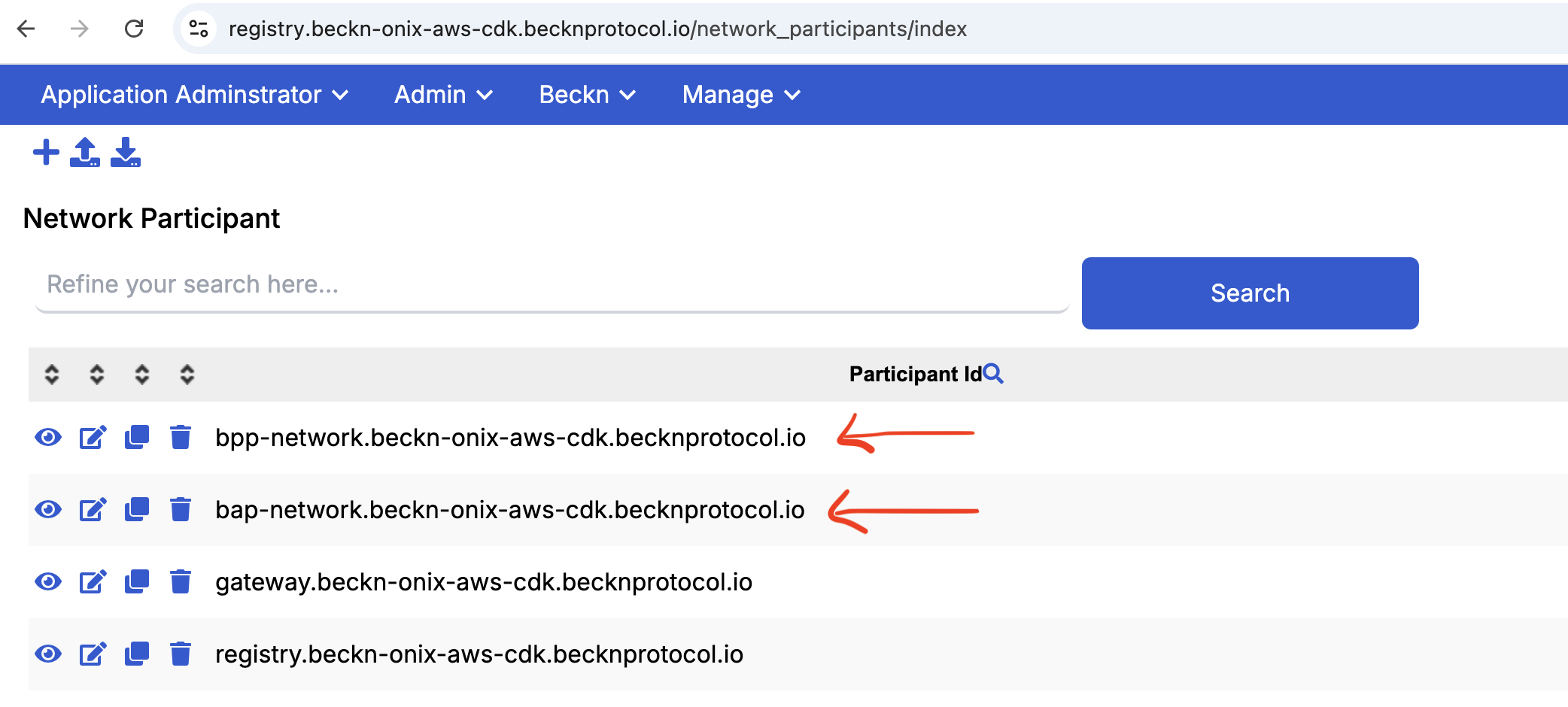
Navigate to the Admin section, and click on Network Participant.
-
Open BAP or BPP Participant
Find and select the BAP or BPP participant you registered earlier.
-
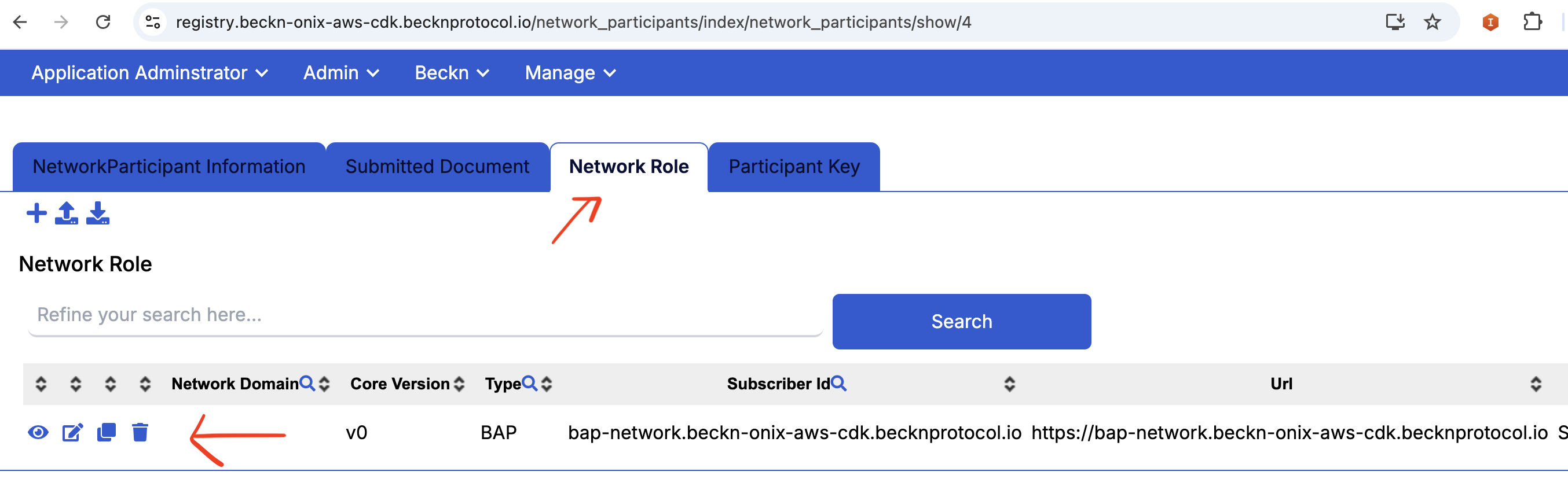
Navigate to Network Role Tab and Edit
Go to the Network Role tab and click Edit.
-
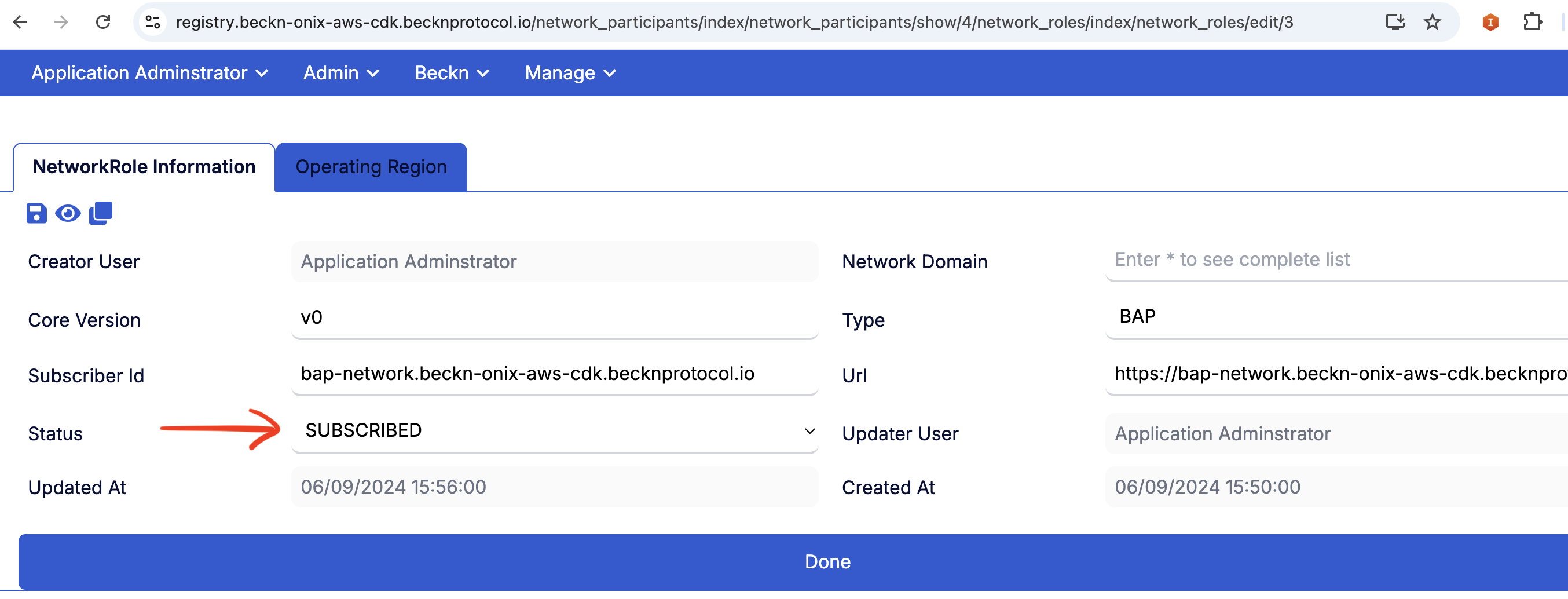
Edit Status and Select SUBSCRIBE
Update the status from
INITIATEDtoSUBSCRIBED, then save your changes.